Monterey Vacation Rentals
Find Monterey vacation rentals in Carmel, Pebble Beach, Pacific Grove, and more. Vacation Rentals in Monterey, CA since 1986 with over 150 years of combined property management experience.
"Monterey Bay Property Management has redeemed my faith in rentals!"
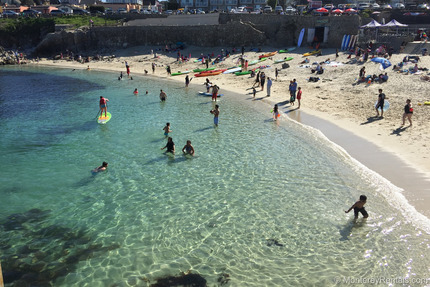
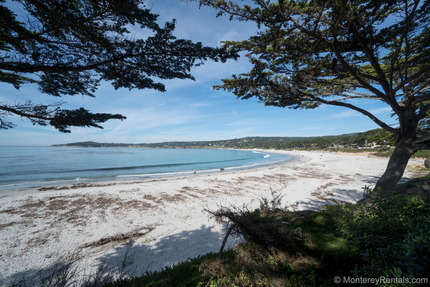
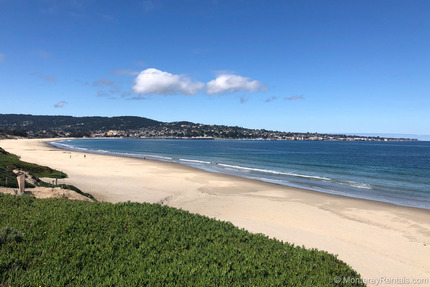


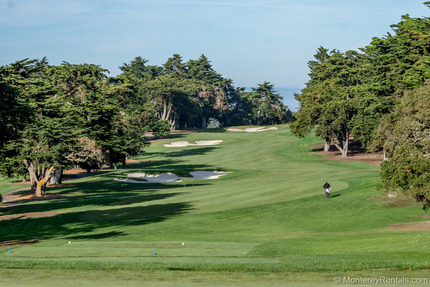


Monterey Bay Property Management offers the best prices on all our Monterey vacation rentals when you book direct. We guarantee you will not find these properties for less on Airbnb, VRBO, HomeAway, or any other website.
"I love having the peace of mind that you are only a phone call away."
Why Visit the Monterey Area?
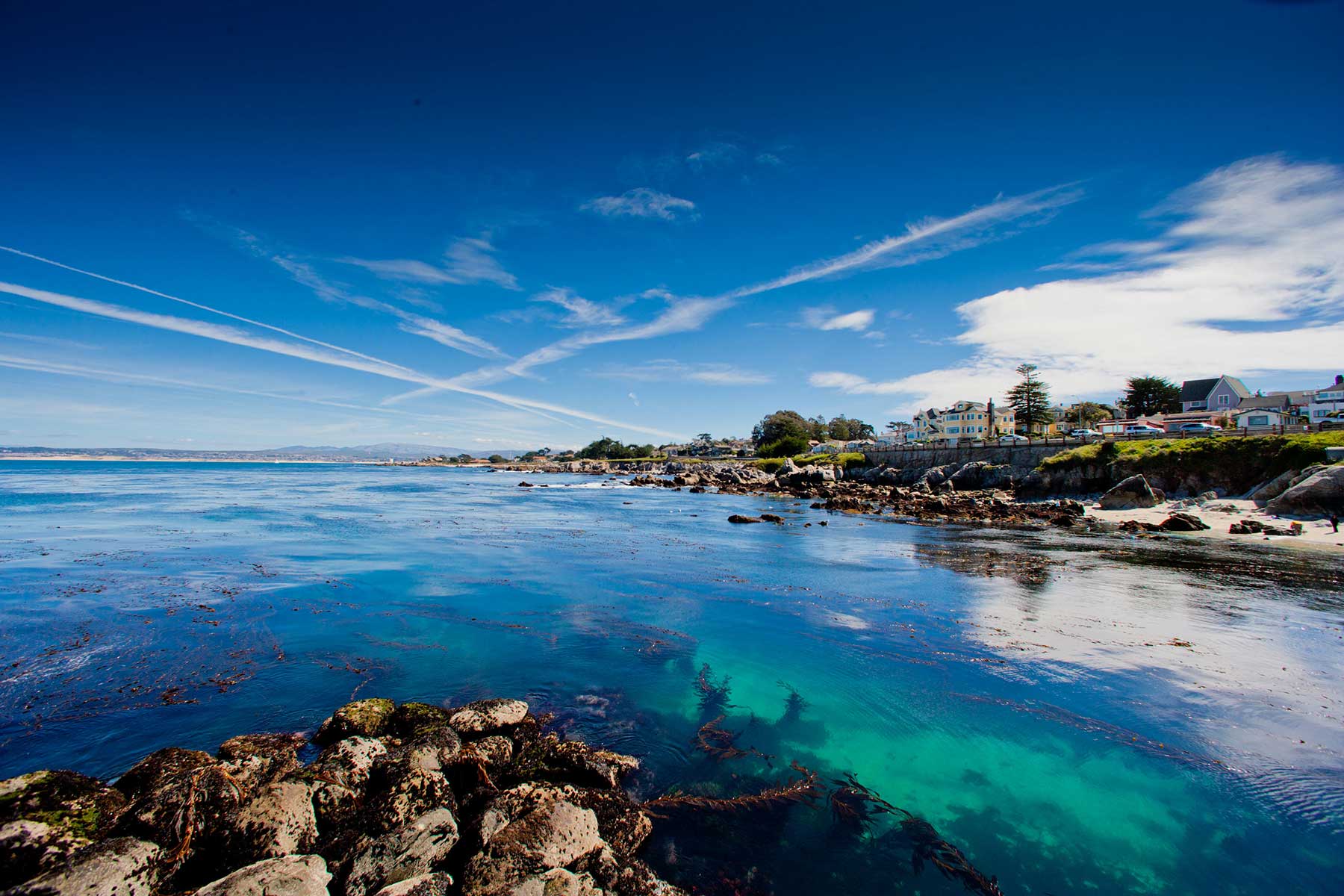
The Monterey Peninsula is a popular vacation destination located in Monterey County, roughly a 2-hour drive south of San Francisco. Until the 1950s, Monterey was home to a large fishery. Today Monterey is the #1 visitor destination in Central California with a wide variety of attractions including the Monterey Bay Aquarium, Cannery Row, Fisherman's Wharf, California Roots Music and Arts Festival, and the Monterey Jazz Festival. Then there's the 17-Mile Drive with stunning scenery, and the beaches and coastal terrain in Point Lobos State Natural Reserve. Those looking for luxury should visit Carmel-by-the-Sea and the legendary Pebble Beach Golf Links, the #1 public course in America and 6-time host of the U.S. Open Championship.
Long Term Rentals
Monterey Bay Property Management has been helping guests find vacation rentals, monthly rentals, and long-term rentals in Monterey, CA for over 40 years. Whether you're relocating or enjoying your Monterey vacation, we have the beachfront houses, cottages, condos with ocean views, apartments, cabins, or townhomes you are looking for in Monterey, Pacific Grove, Pebble Beach, Carmel, Carmel Valley, Big Sur, Del Monte, Seaside, Marina, Salinas, and Moss Landing.
Monterey Bay Property Management specializes in the property management of single-family homes, condos, and apartment buildings in Monterey County. We understand the needs of the out-of-area property owner. For those of you considering a vacation rental or investment purchase, we can help familiarize you with the Monterey Peninsula and area price ranges. We can discuss the investment potential of local property, as well as offer our property management services.